💡 Tip: At least an Apple Watch Series 4 or later with watchOS 10.2 is required.
You can play enduco workouts using the Apple Watch Training App (by Apple) to track your training.
How to set it up:
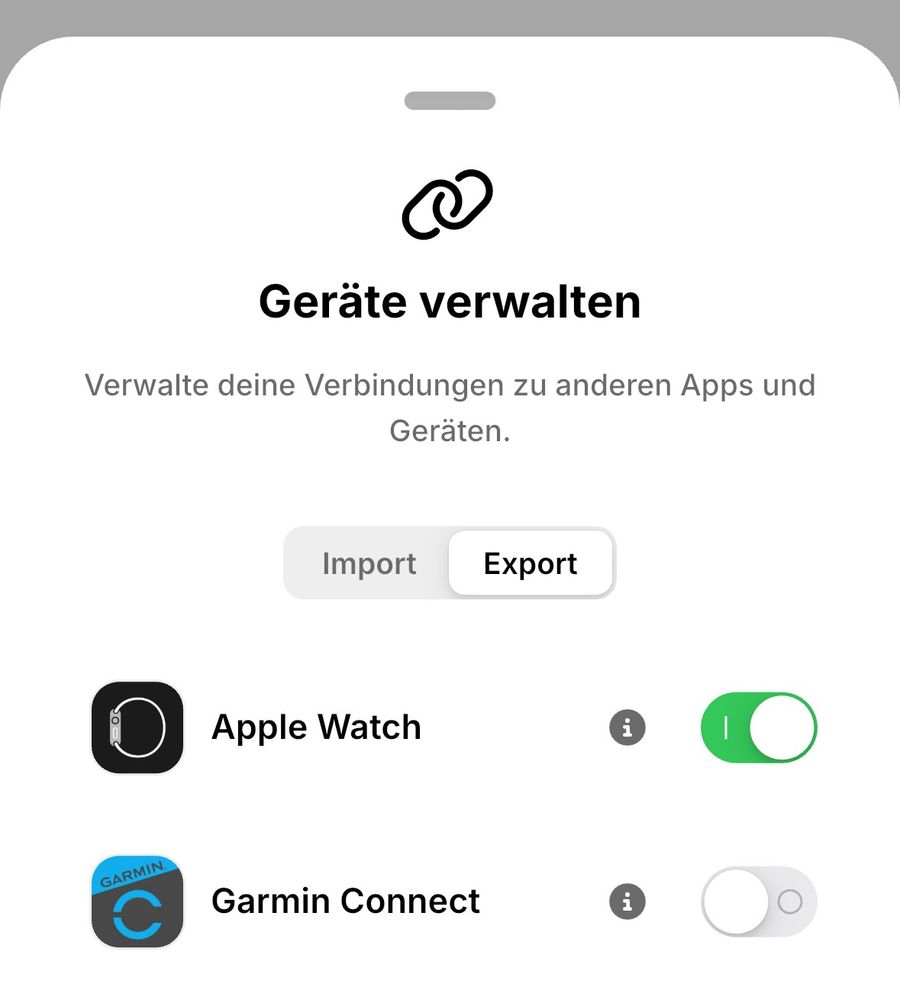
- Enable Apple Watch export
- Go to Profile → Connected Devices → Export → Enable the connection to Apple Watch
Send a workout to your Apple Watch
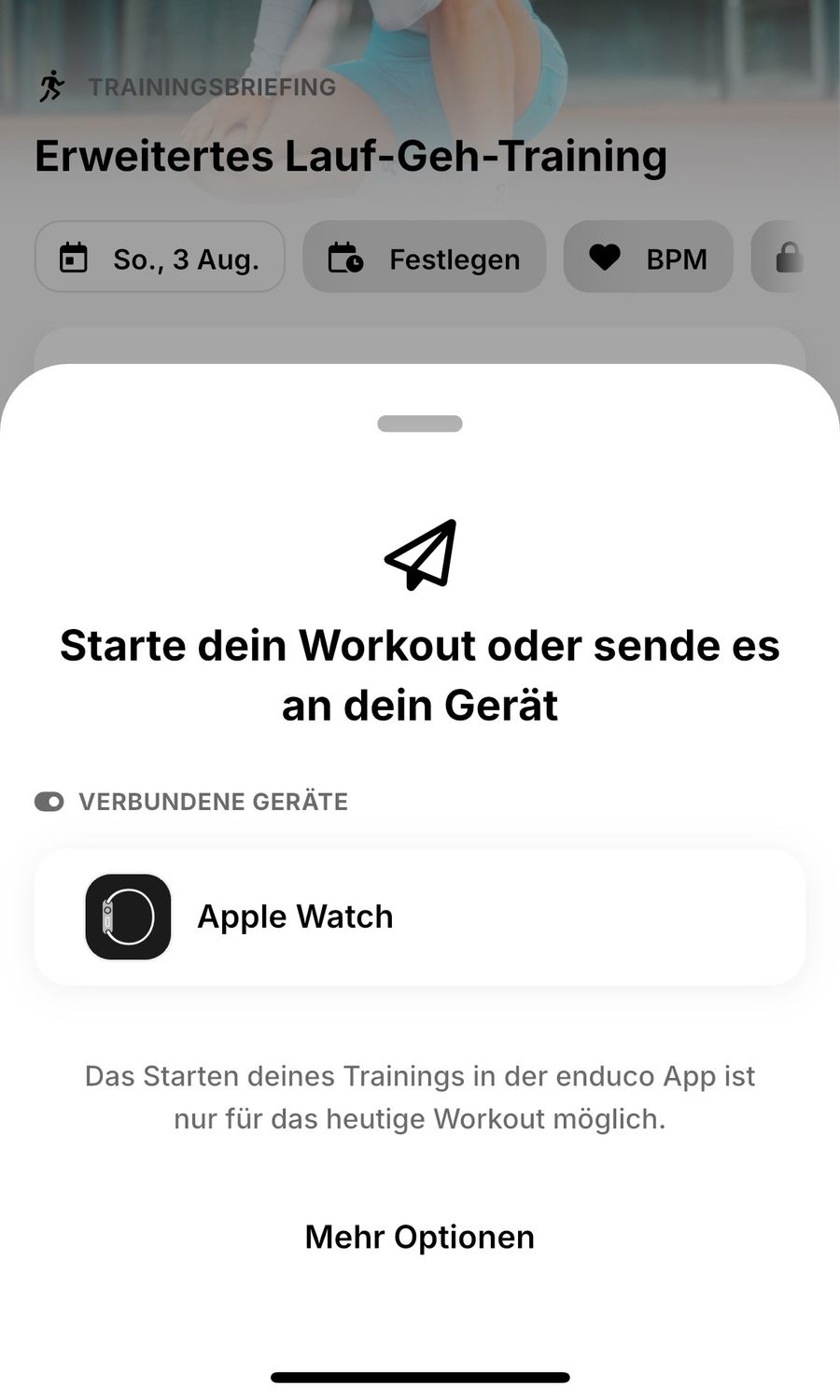
- Select a workout – ideally today’s workout.
- Tap “Start Workout” and then choose Apple Watch.
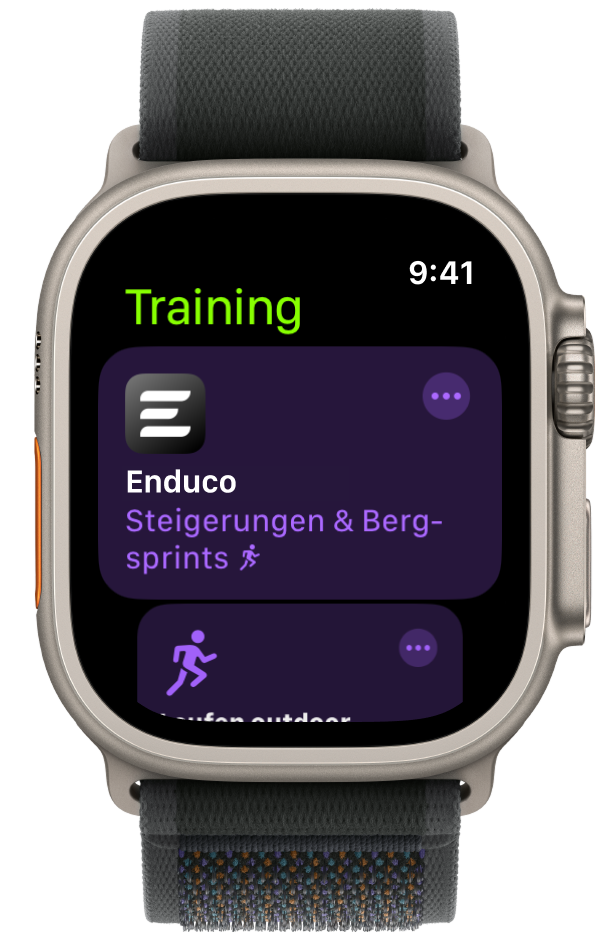
- Your workout should now appear on your Apple Watch.
Note:
- RPE-based workouts are not supported.
- Please choose workouts based on heart rate or pace to send them to your Apple Watch.
- Make sure your training zones are set up in your profile under Training Metrics / Training Zones.
How do I import workouts from Nike Run, Runna, or Adidas Running?
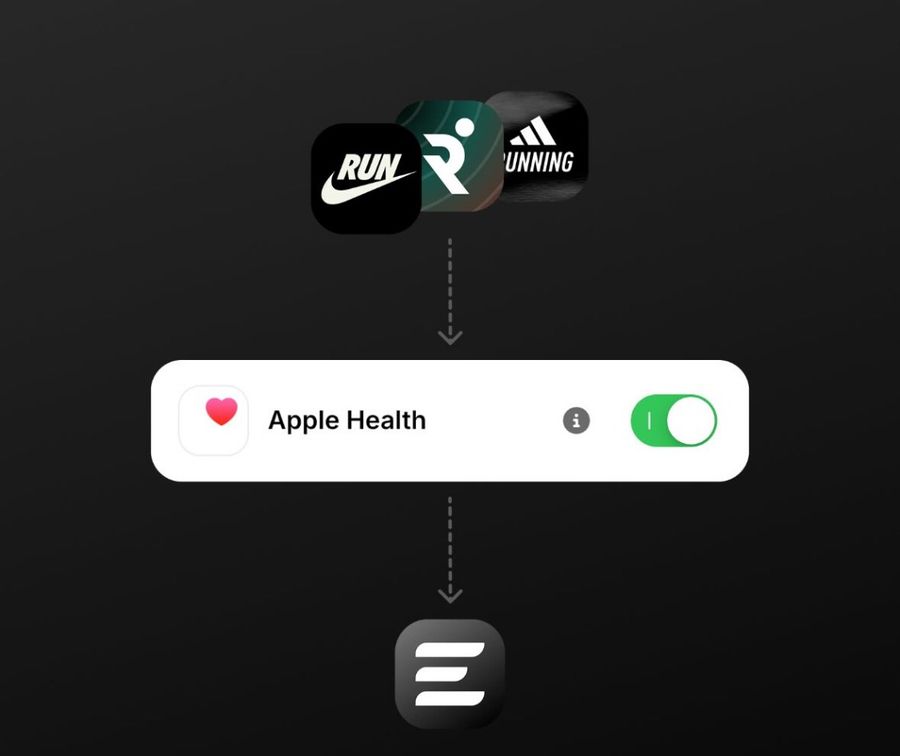
Workouts from third-party apps like Nike Run, Runna, or Adidas Running can also be imported into enduco. Direct import isn’t possible, so everything goes through Apple Health. Simply connect the app to Apple Health, complete your workout as usual, and the data will automatically be passed on to enduco. This way, all your workouts are collected in one place.